Stock Adjustment
This document explains the steps to perform a stock adjustment in the Jova POS system. This process allows you to adjust the stock quantity in the warehouse to match the actual count.
Stock Adjustment Flow
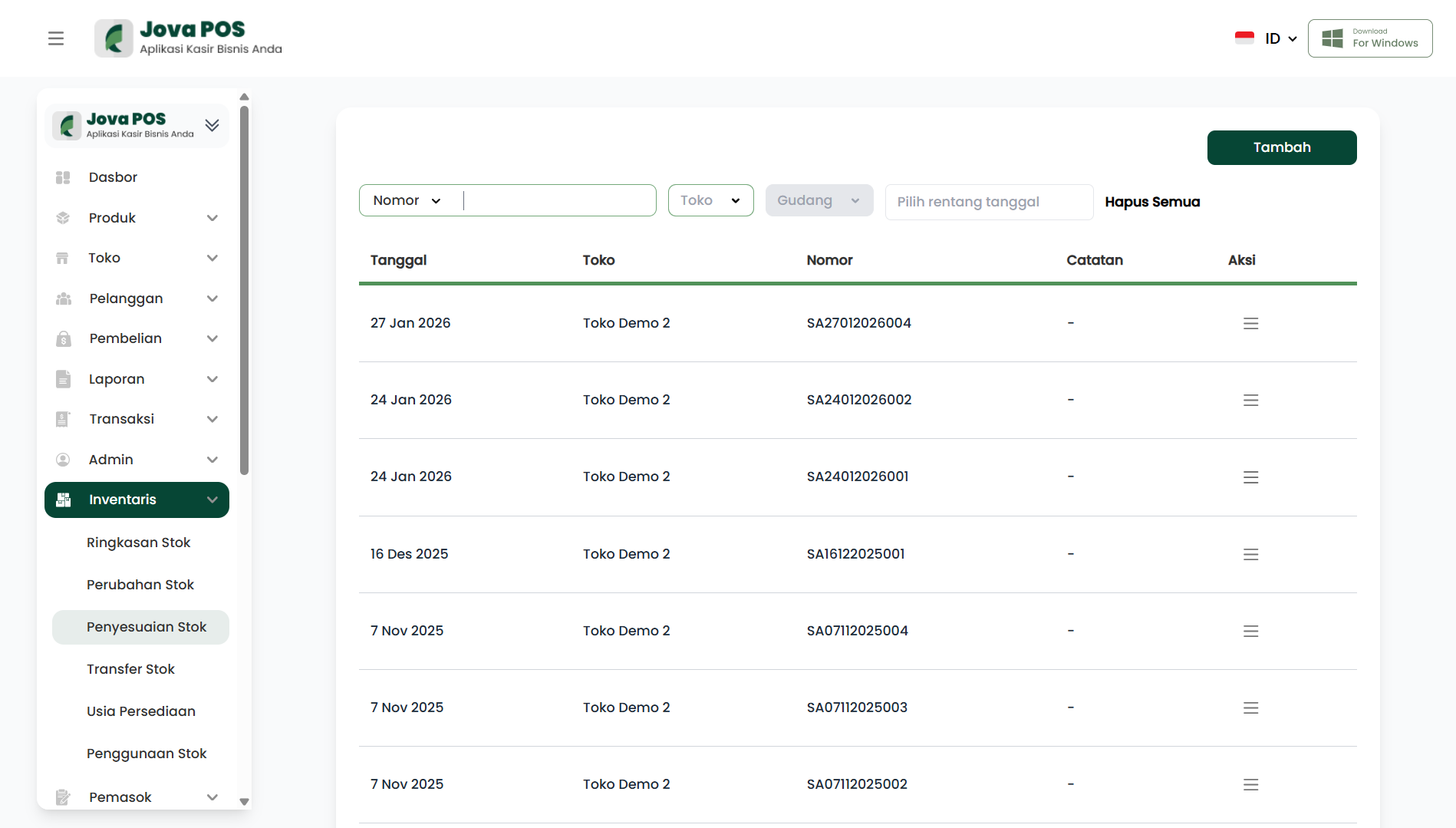
- Access the Inventory → Stock Adjustment menu.
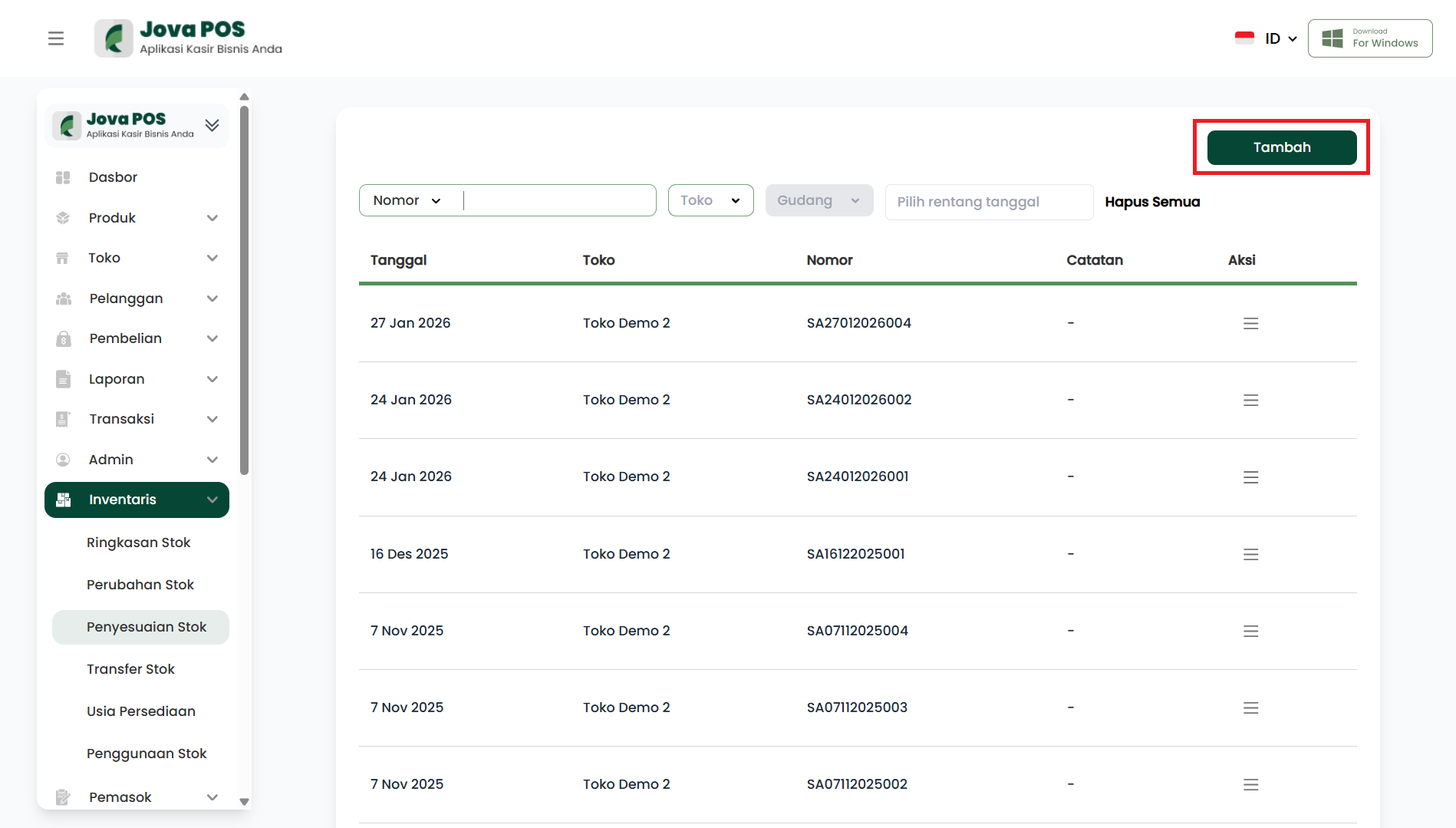
- Click the Add button to create a new stock adjustment.
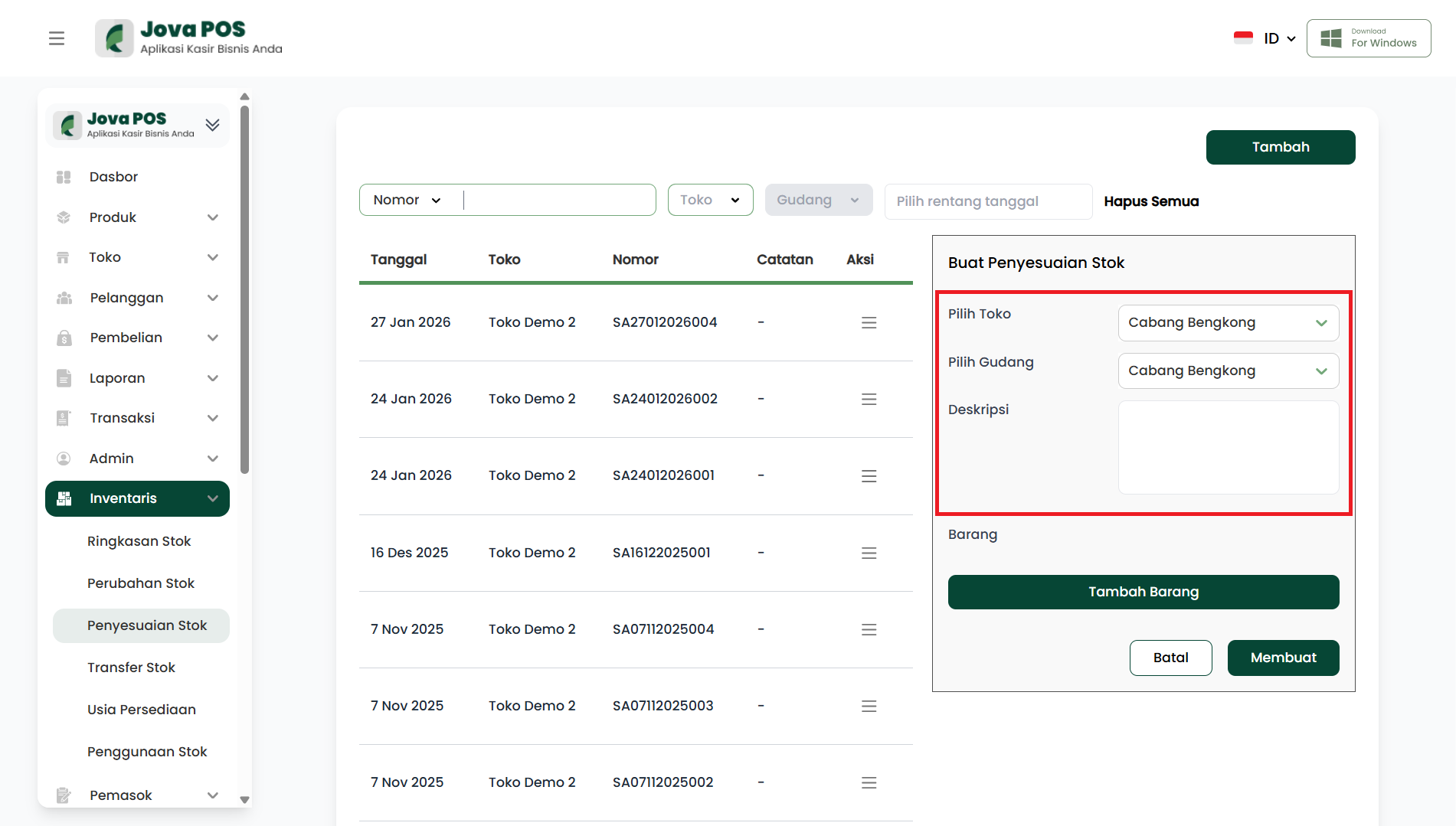
- Select the relevant Store and Warehouse.
- Fill in the adjustment description (optional).
- Select the items to adjust and specify the stock change.
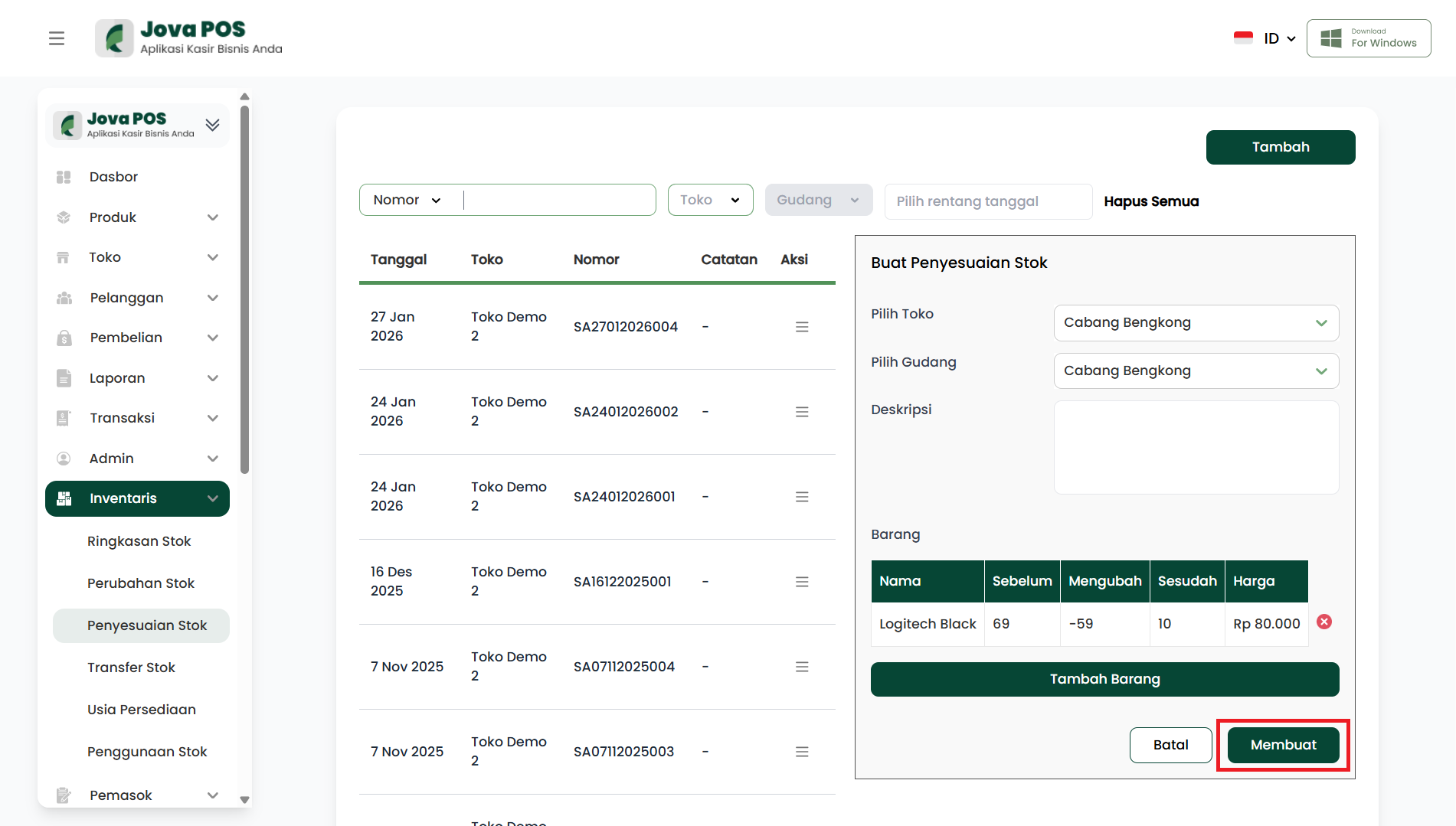
- Click Create to complete the adjustment.
1. Accessing the Stock Adjustment Menu
- In the sidebar, click Inventory.
- Select Stock Adjustment.
2. Creating a New Stock Adjustment
To create a new stock adjustment, click the Add button located in the top right corner of the page.
3. Selecting Store and Warehouse
On the Create Stock Adjustment page, select the Store and Warehouse where the adjustment will be made.
Store and Warehouse Selection Form
- Select the relevant Store.
- Select the relevant Warehouse.
4. Filling in the Adjustment Description
You can add a description for the stock adjustment (optional). This description is useful for recording the reason or other details related to the stock adjustment.
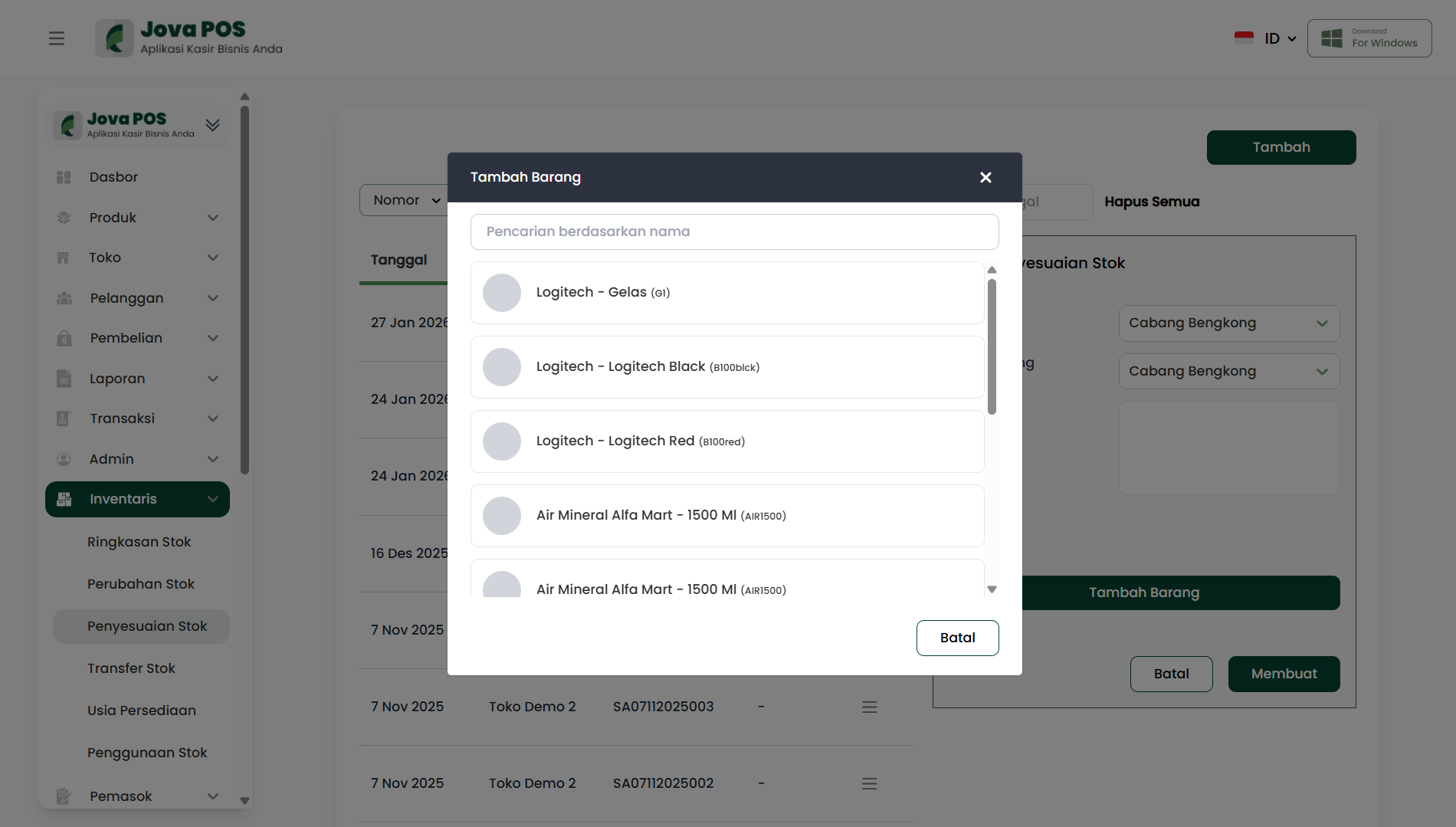
5. Selecting Items for Adjustment
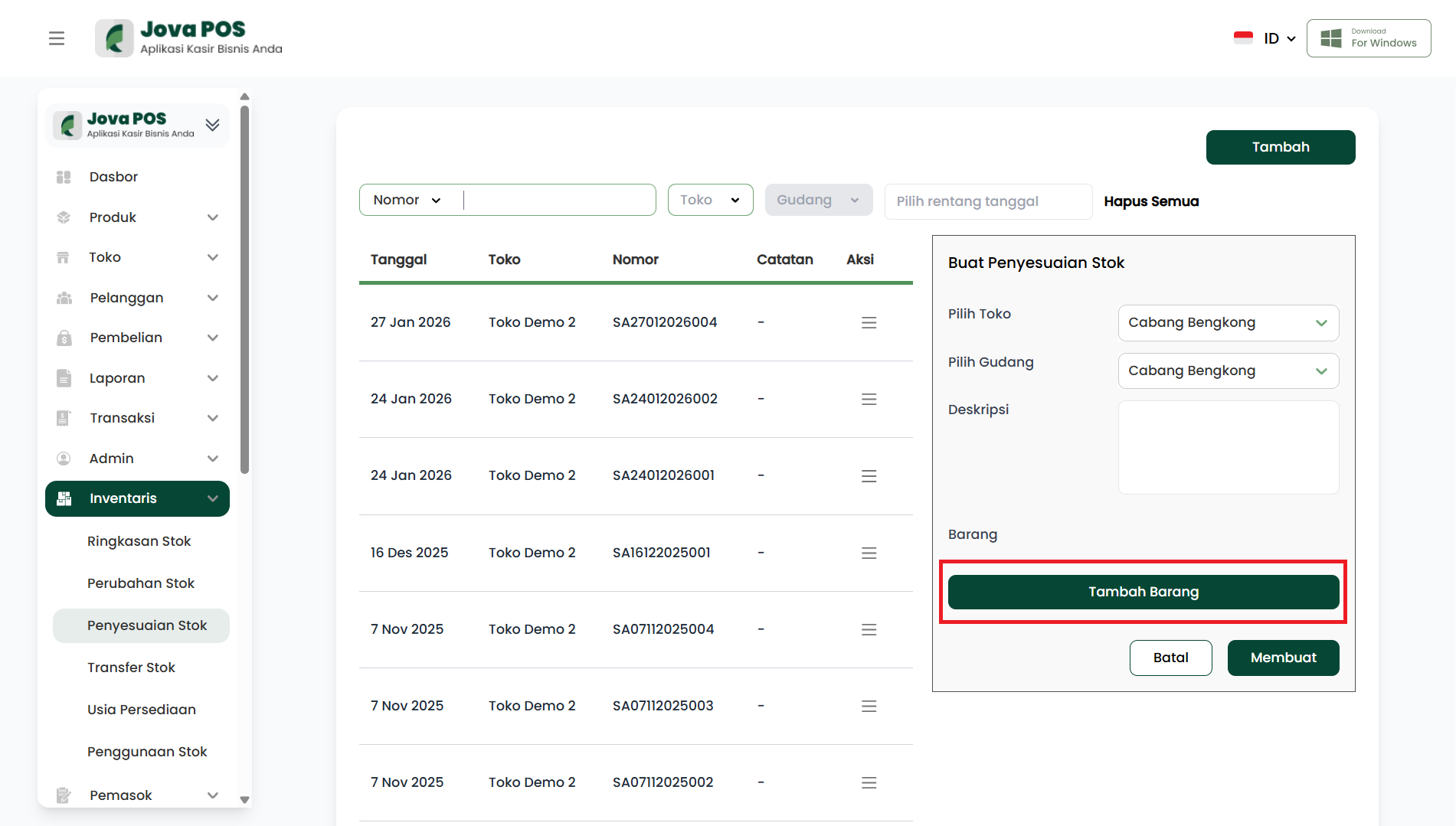
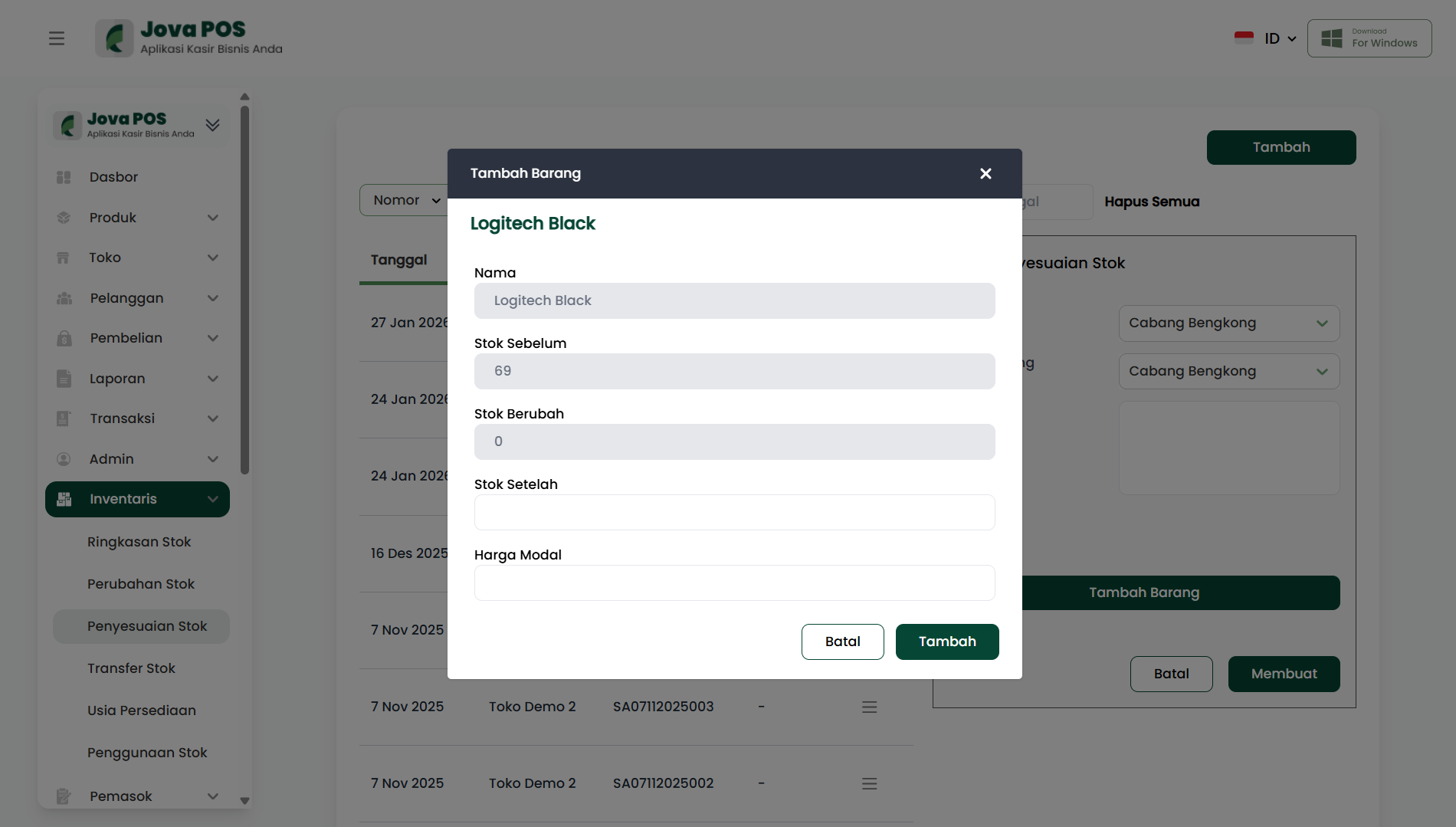
After selecting the store and warehouse, click Add Item to choose the items to adjust. You will be asked to fill in the following information:
- Item Name: Select the item from the available list.
- Stock Before: The stock quantity before the adjustment.
- Stock Change: The amount of stock change.
- Stock After: The stock quantity after the adjustment.
- Cost Price: The cost per unit of the item.
6. Completing the Adjustment
After selecting the items to adjust, click Create to complete the stock adjustment process.
7. Stock Adjustment List
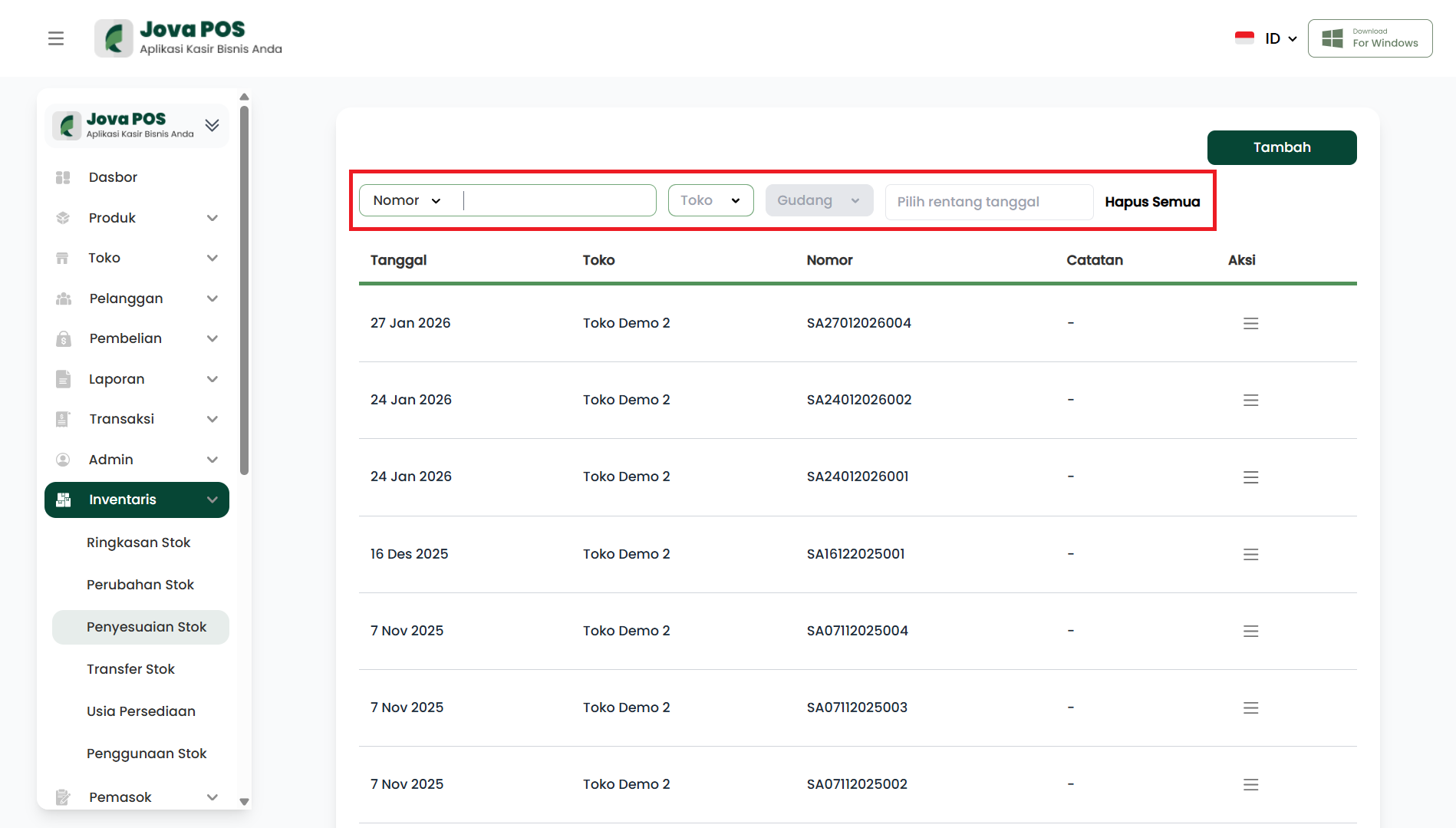
After the stock adjustment is complete, you can view the list of adjustments that have been made. The table will display the following information:
- Date
- Store
- Number
- Description
- Action (View)
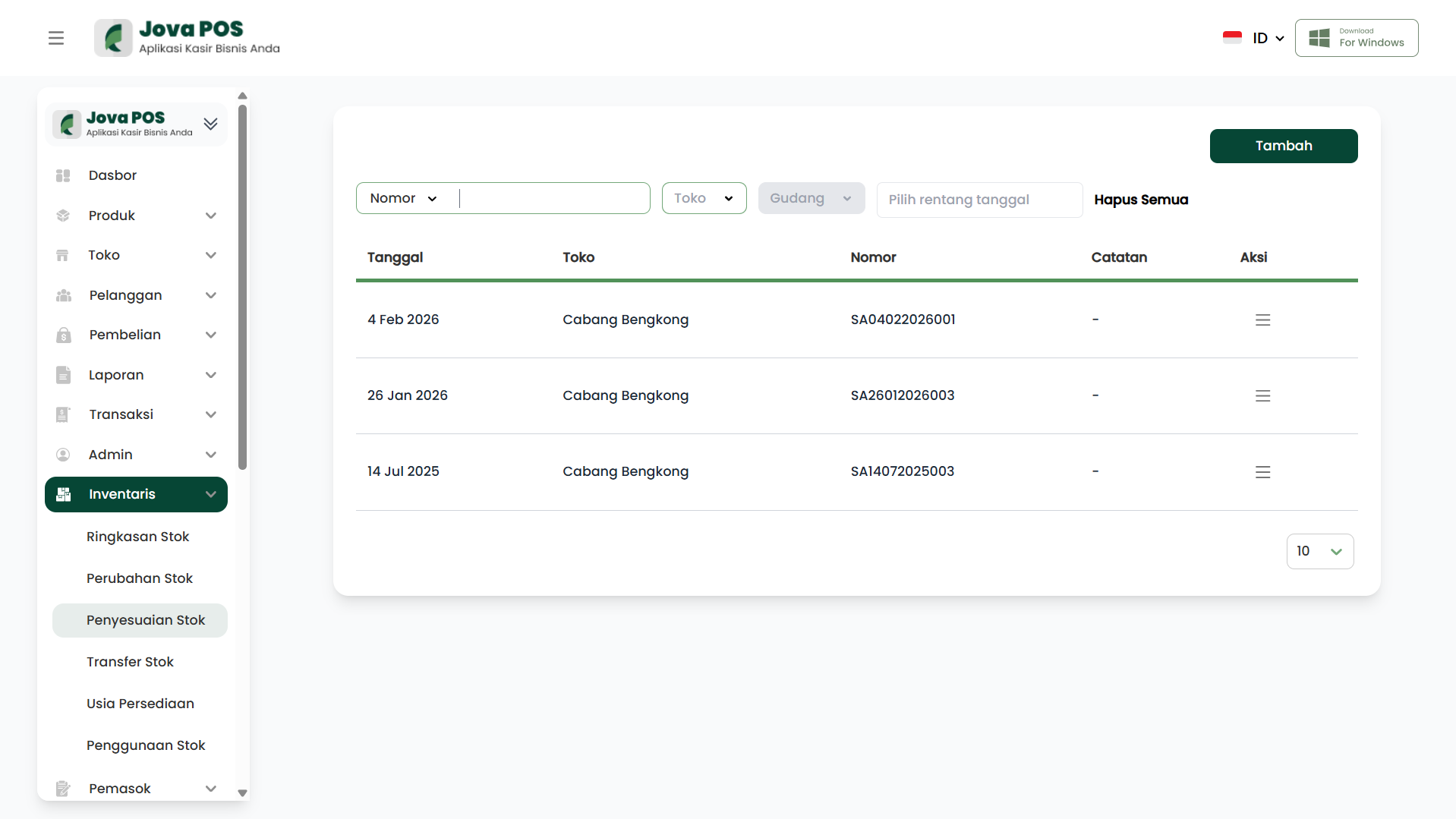
Search and filter features will help you find adjustment data by Number, Store, and Warehouse.
Search Filters
- Select Store: Choose the relevant store to view stock adjustments for that store.
- Select Warehouse: Choose a warehouse to filter stock adjustments by warehouse location.
- Select Date Range: Specify the date range of adjustments to display.
Conclusion
The Stock Adjustment feature in Jova POS makes it easy to ensure that the stock quantity recorded in the system matches the actual items in the warehouse. This process helps maintain inventory data accuracy and ensures smooth business operations.