Supplier Debt Report
This document explains how to view and manage supplier debt reports in the Jova POS system.
Supplier Debt Report Flow
The general flow is:
- Access the Reports → Supplier Debt Report menu.
- Select the supplier whose debt report you want to view.
- View the report details related to total PO and total debt.
1. Accessing the Supplier Debt Report Menu
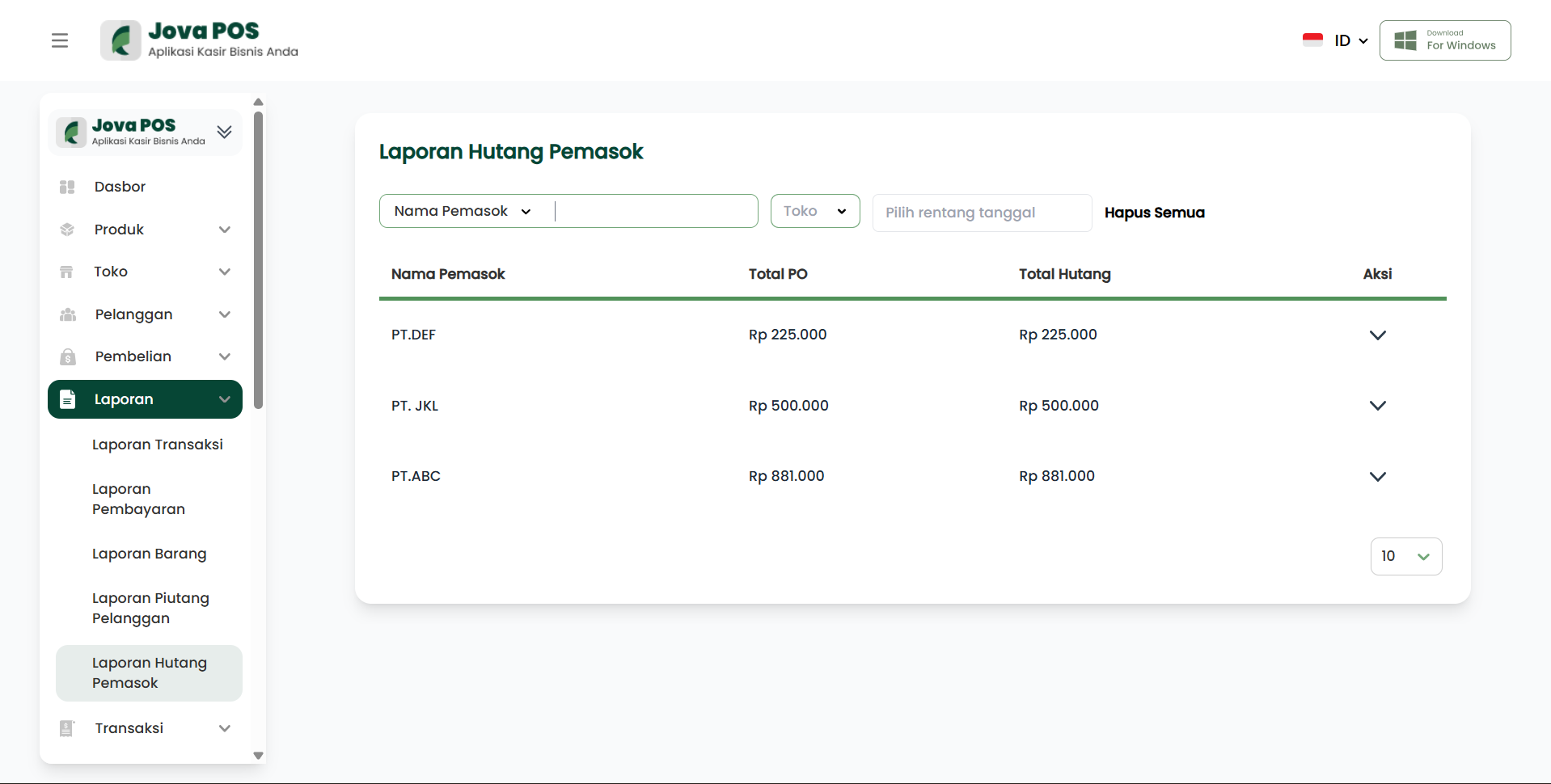
- In the sidebar, click Reports.
- Select Supplier Debt Report.
2. Supplier Debt Report Summary
In the Summary section, you will see total PO and total debt information for each supplier.
- Supplier Name: The name of the relevant supplier.
- Total PO: Total purchase orders from the supplier.
- Total Debt: Total debt that needs to be paid to the supplier.
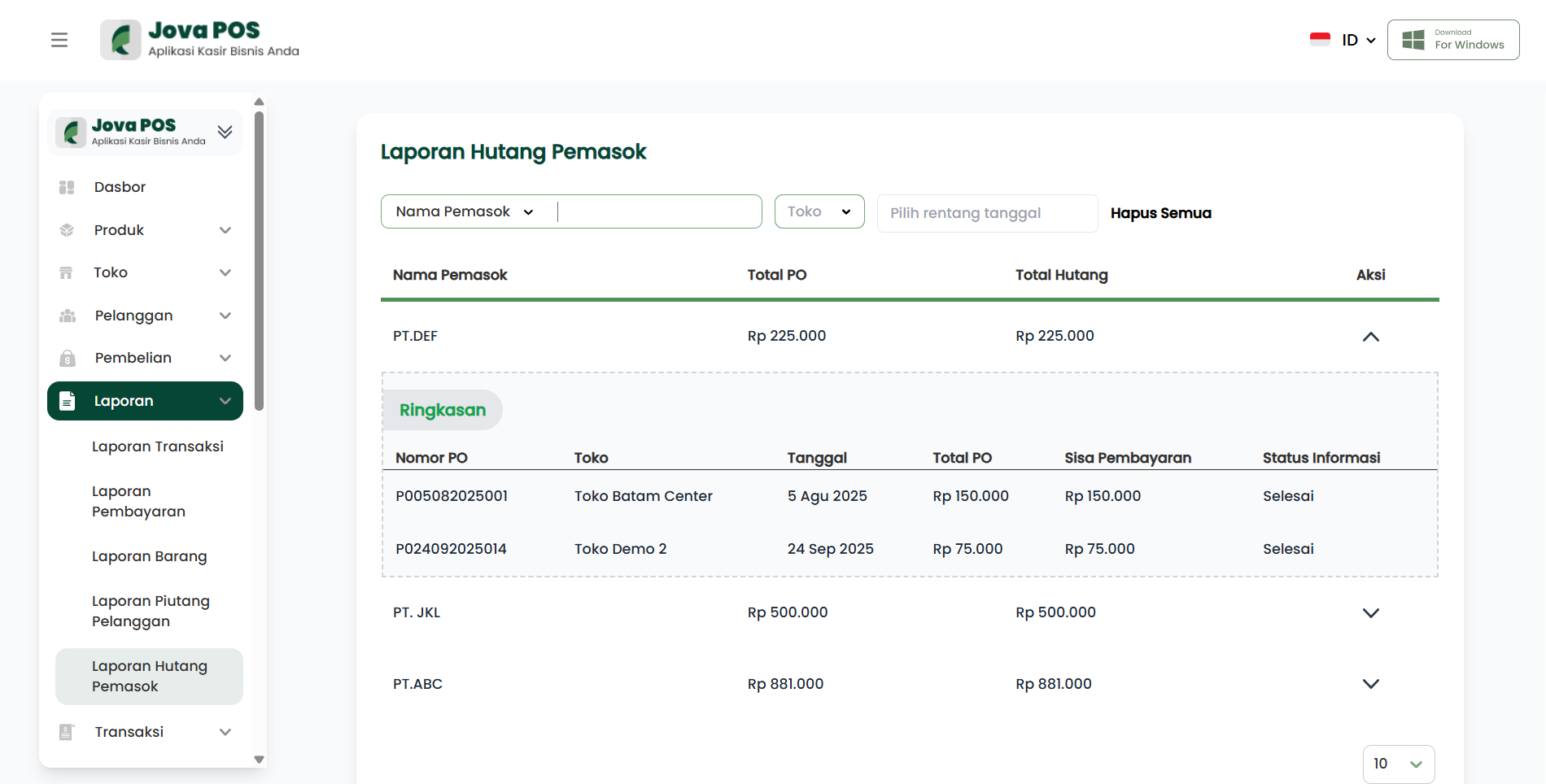
3. Viewing Supplier Debt Report Details
After selecting a supplier, you will see transaction details including:
- PO Number: The related purchase order number.
- Store: The store name related to the transaction.
- Date: The transaction date.
- Total PO: Total purchase order amount.
- Remaining Payment: The amount still to be paid.
- Status Information: Payment status, whether paid or pending payment.
4. Filtering and Downloading Reports
On the report page, you can filter reports by Supplier Name and Date Range.
- Use the Supplier Name dropdown to select the supplier whose report you want to view.
- Select a date range to filter transactions by specific dates.
If you want to download the report, click the Export to excel button to download the report in Excel format.
Conclusion
The Supplier Debt Report provides a clear overview of transactions involving suppliers and payment statuses. By using this feature, you can monitor and manage debts more efficiently.