Package Management
In the Packages section, you can manage available packages for your store, including updating or extending previously purchased packages.
1. Package Page View
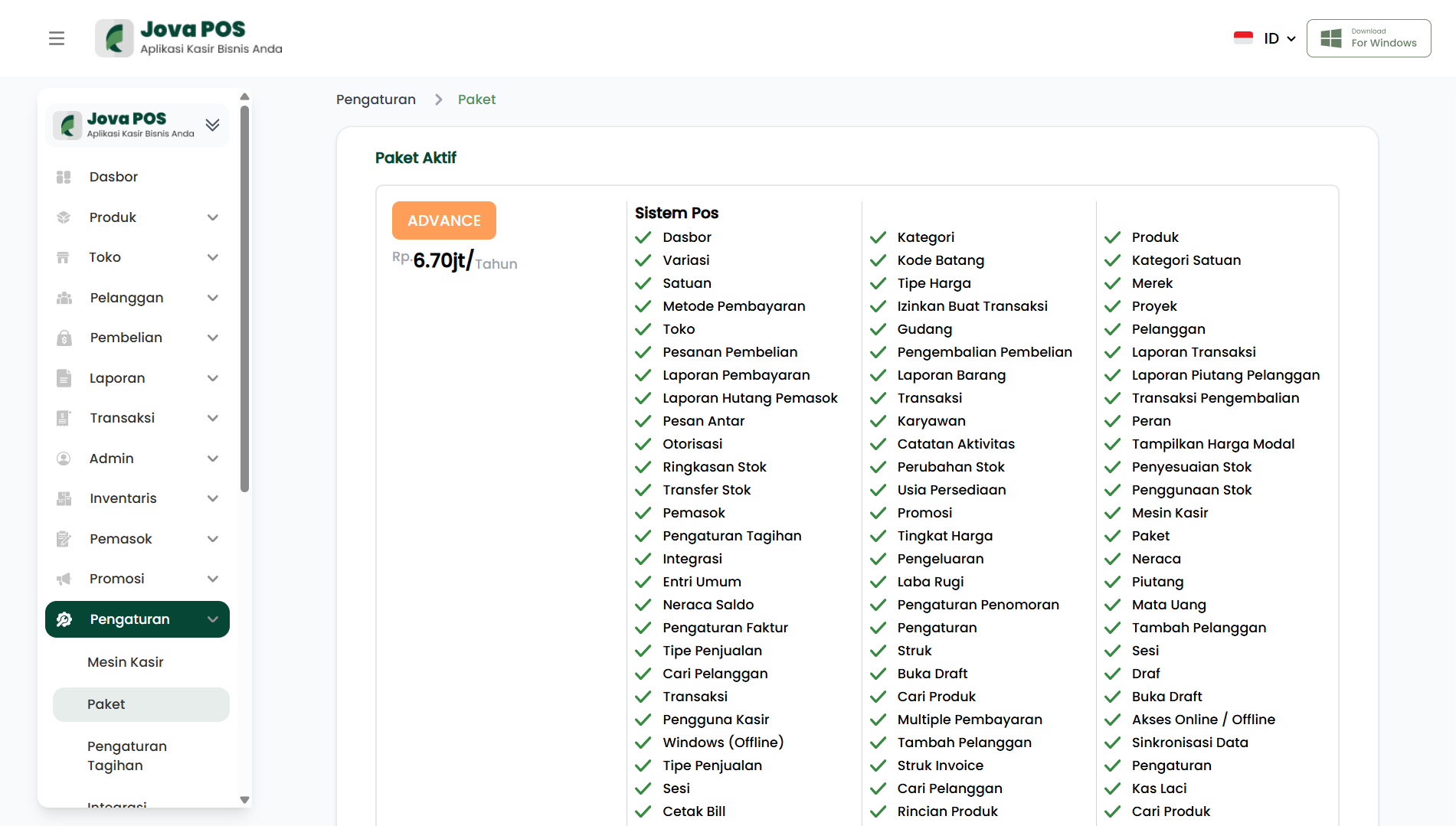
The Packages page displays information related to the package you have selected for your store, including the package name, total cost, status, and active period.
Package Page View:
- Package Name: The name of the applied package.
- Total: The total cost of the package.
- Status: Whether the package is active or not.
- Duration: The active duration of the package.
Example Display:
2. Package History
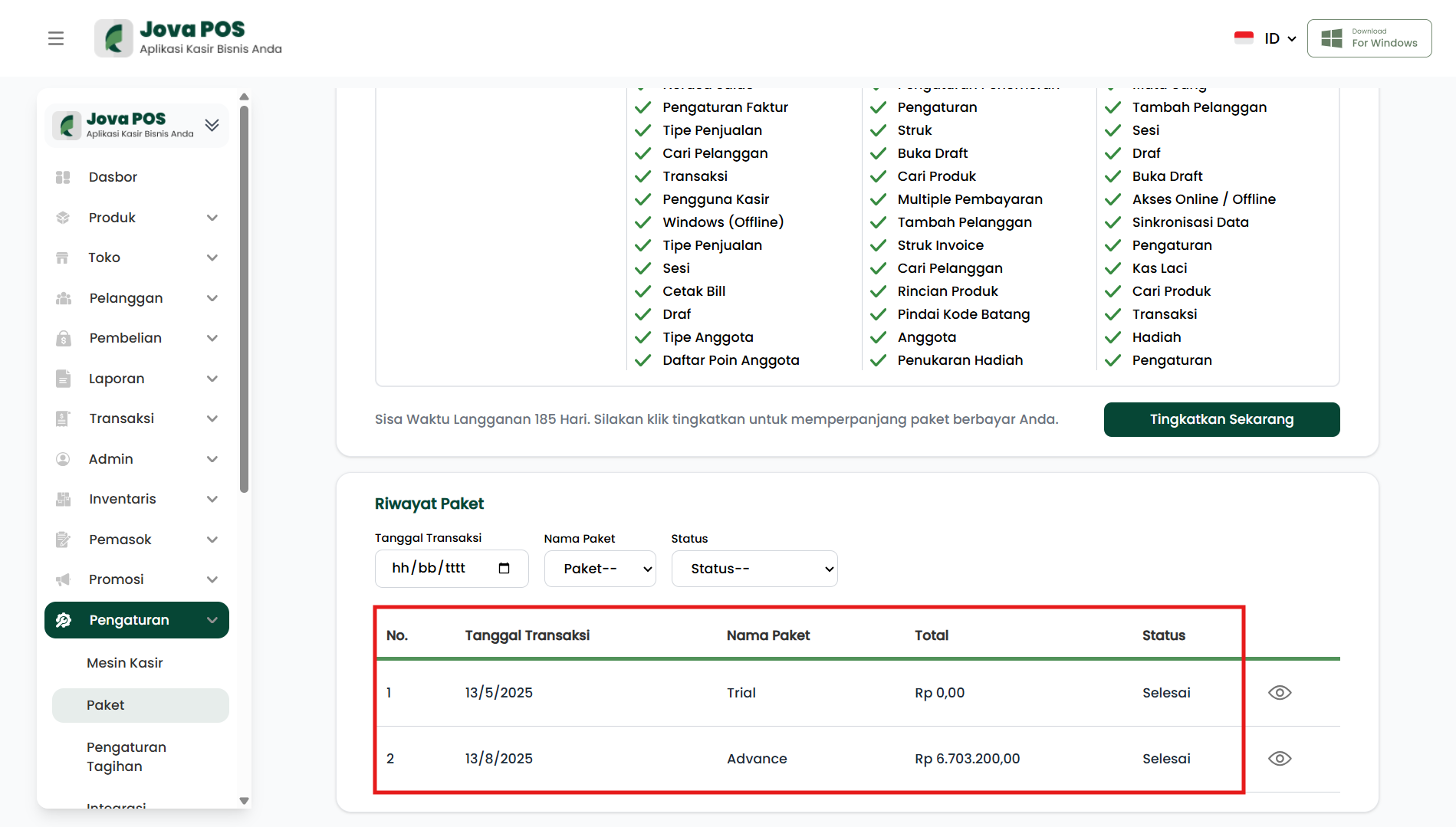
In the Package History section, you can view the history of package transactions that have been made, including transaction date, package name, total cost, and transaction status.
Steps:
- Transaction Date: The date the package transaction was made.
- Package Name: The name of the purchased package.
- Total: The amount paid for the package.
- Status: The status of the transaction, whether completed or not.
Package History Example:
3. Extending a Package
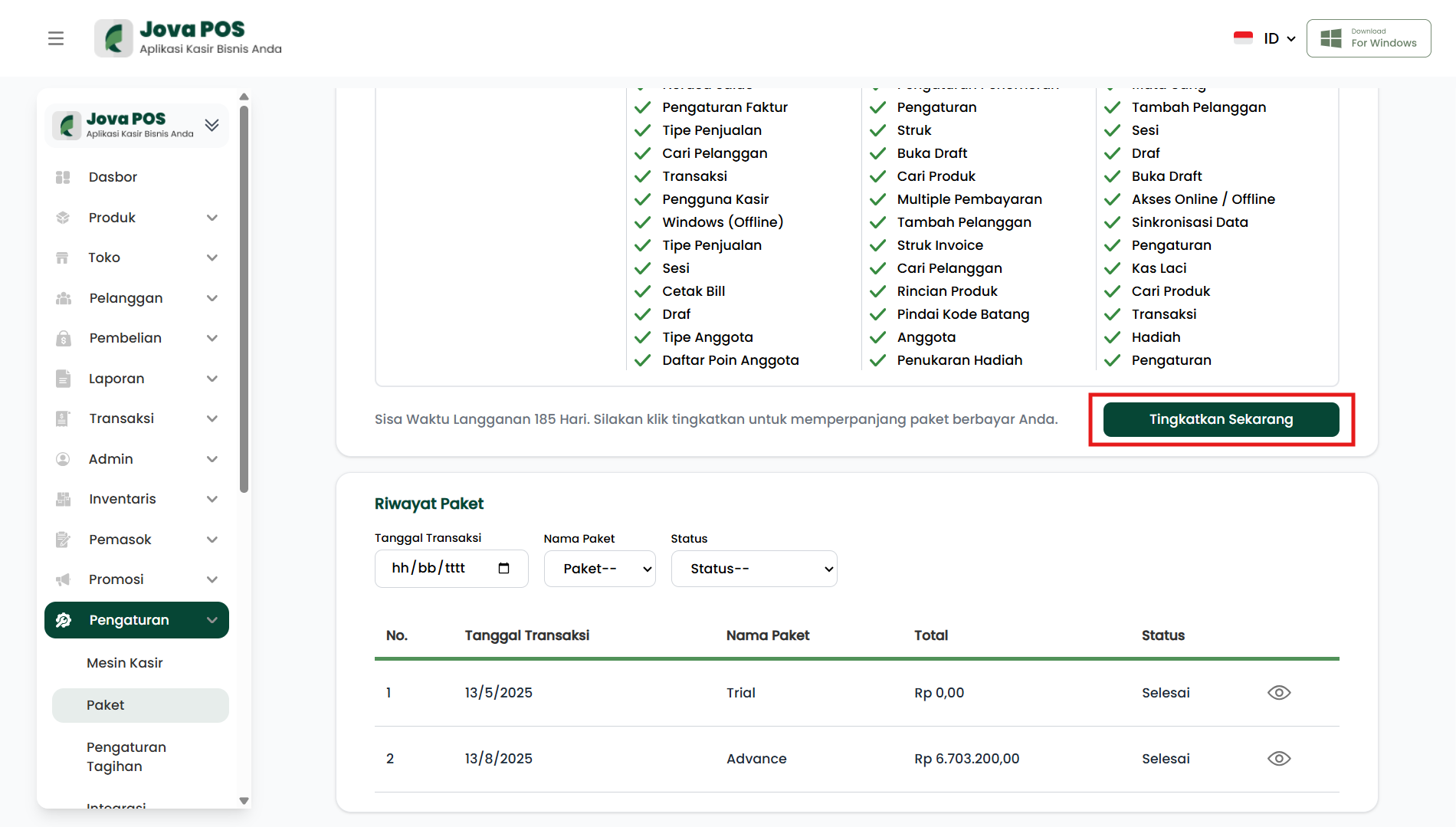
If you want to extend your package subscription, you can do so directly from the Packages page by clicking the Upgrade Now button.
Steps:
- Select Upgrade Now for the package you want to extend.
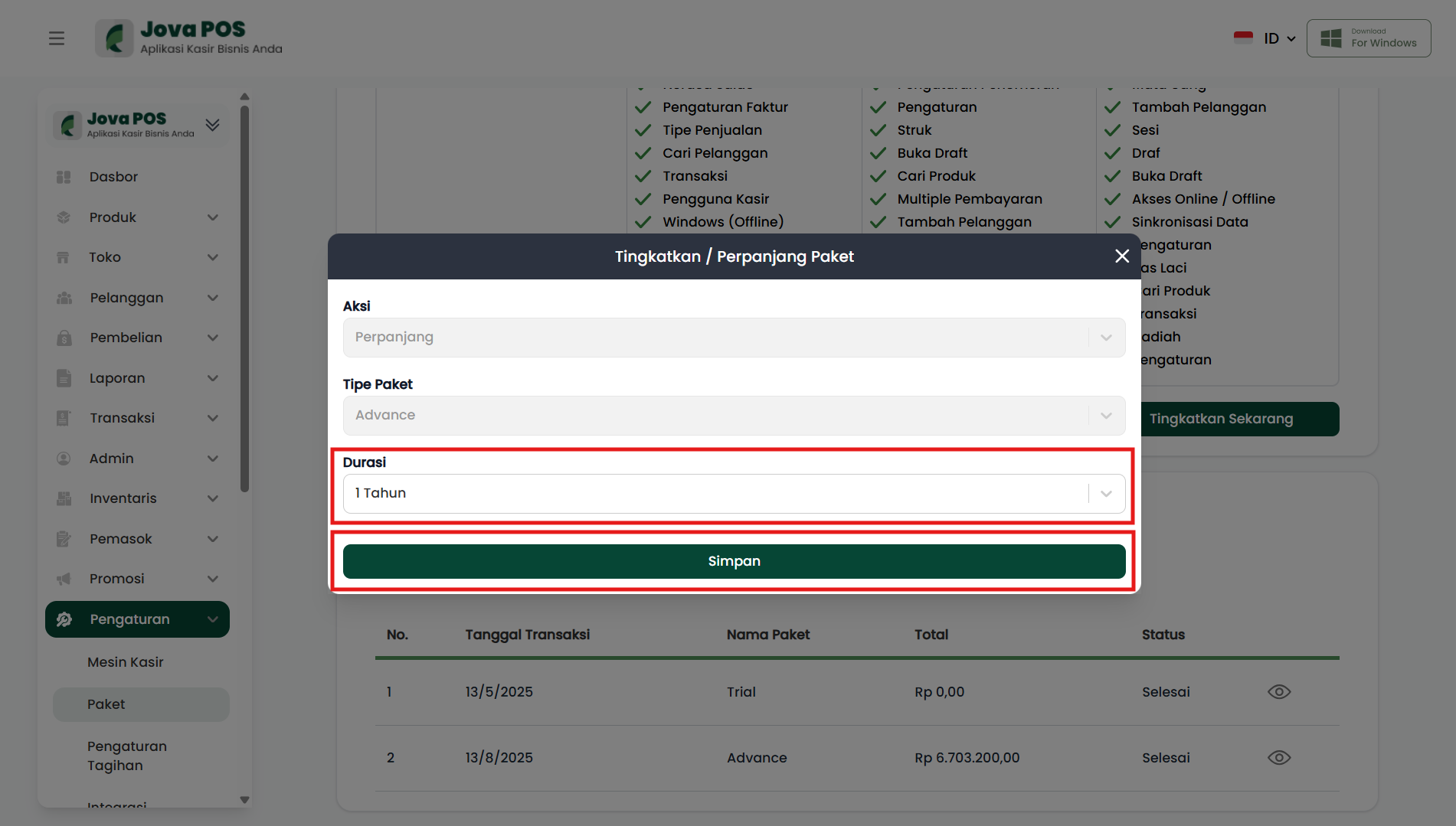
- Specify the extension duration.
- Click Save to extend the package.
Extension Form View:
By following the steps above, you can easily manage packages in Jova POS, including purchasing, updating, and extending packages according to your business needs.